
A plugin for KiCad 7, 8, 9 and 10
Koppar for KiCad
Route, place, finish and check the board you have open, without leaving the PCB editor, or describe a new board and get it back as a KiCad project, schematic and layout. What Koppar changes comes back as one step on KiCad’s undo stack.
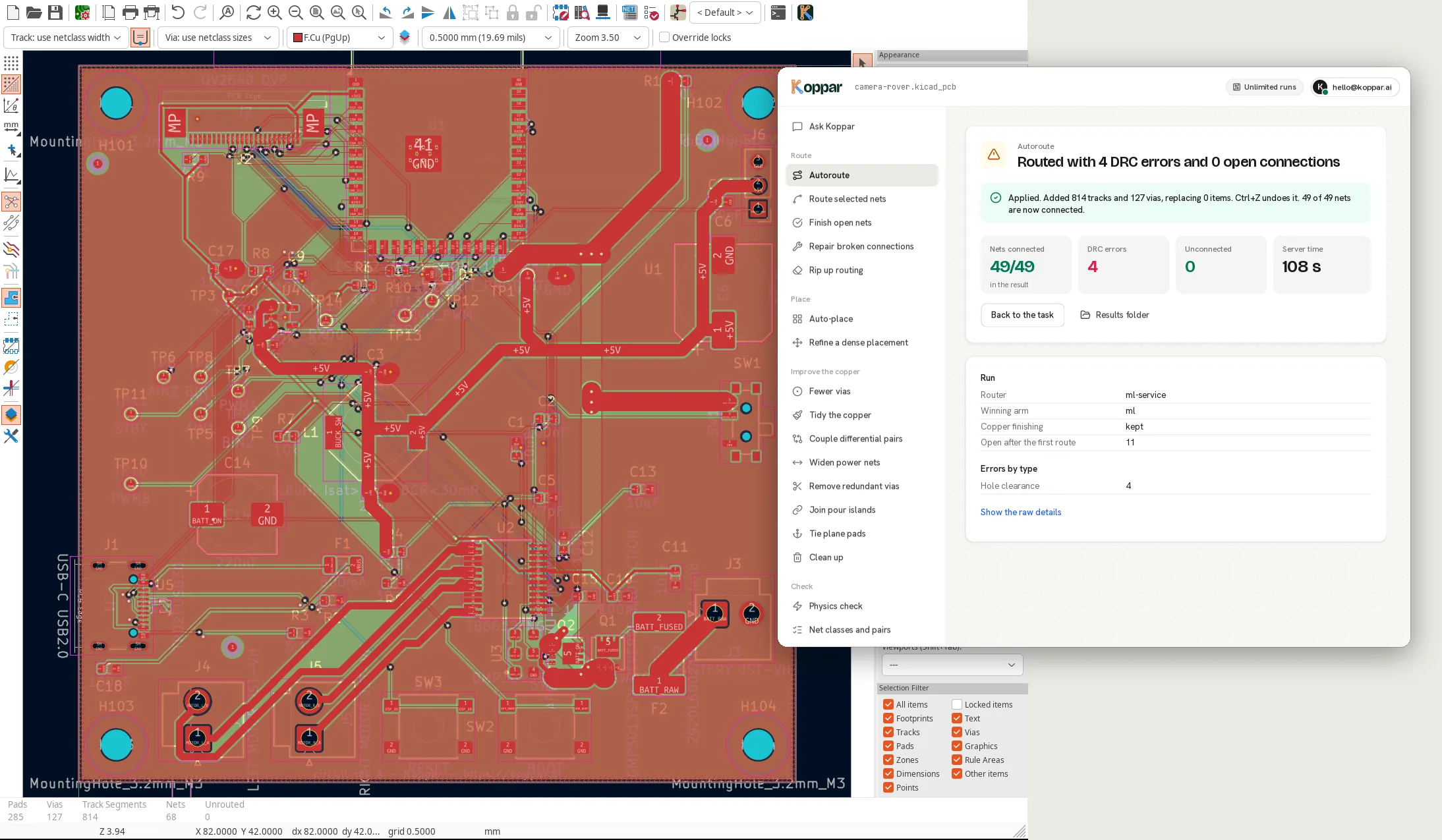
Three steps
Install
In KiCad, open the Plugin and Content Manager, choose Install from File and pick the zip. The Koppar button appears on the PCB editor’s toolbar.
Pick a task
Choose what to do and on which nets. The board is sent as it is in the editor, with its rules, and you can keep working while it runs.
Apply
Read the result: the numbers before and after, and the nets and parts it names. Apply brings it into the board in one undo step.
The same router we benchmark
Autoroute runs the pipeline our public benchmark scores on real open-hardware boards: the learned router, copper finishing, zone fill, and KiCad’s own design-rule check before anything comes back.
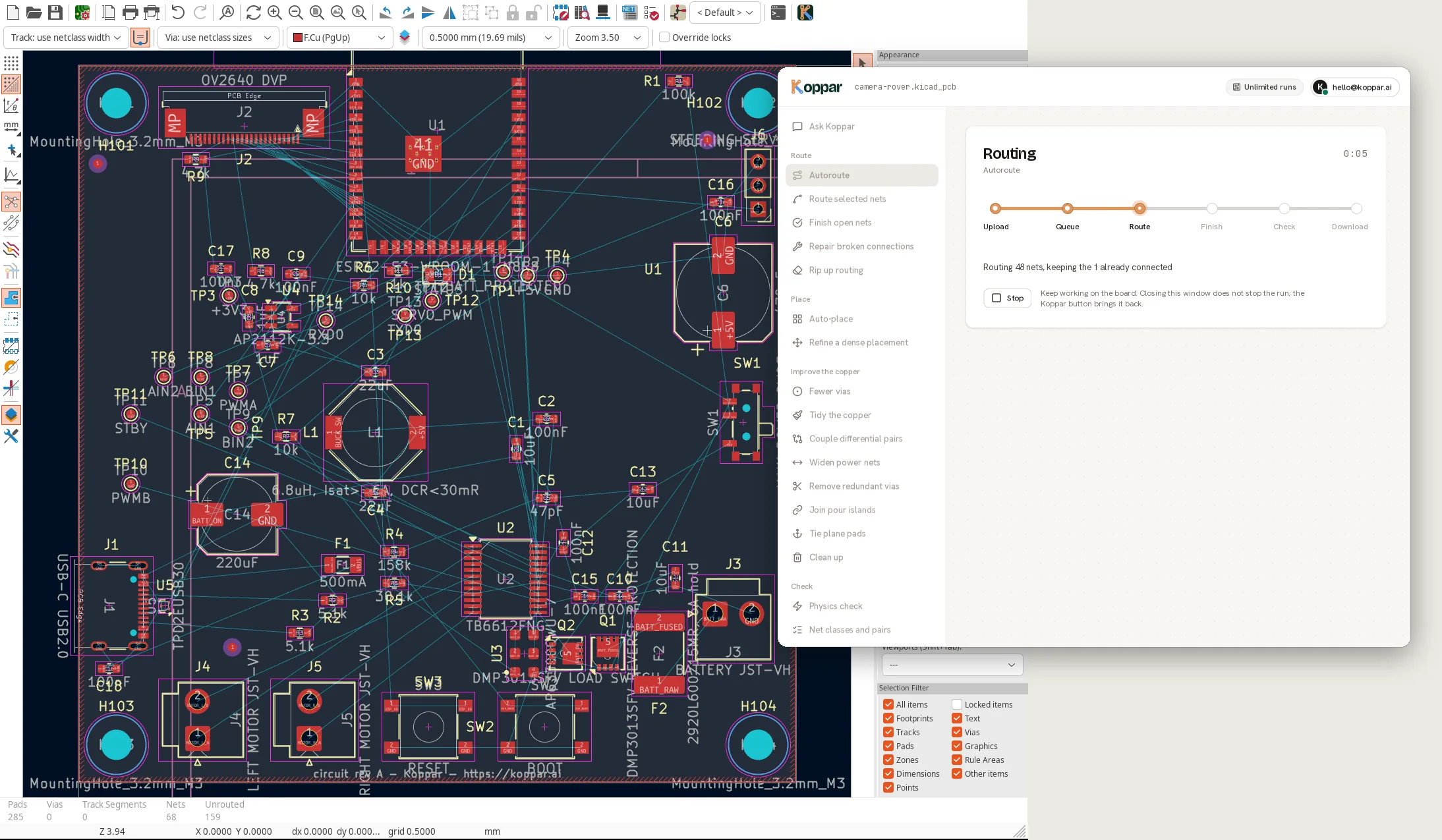
More than routing
With a Koppar account, the window holds the board tools our agent uses, on the board in front of you.
- Route
- Autoroute the open connections, route only the nets you pick, finish a board that is nearly done, repair what broke after you moved parts, or rip routing up. Small boards autoroute without an account.
- Place
- Place parts by connectivity, connectors on the edges and decoupling beside its IC, or refine a dense placement you already like. Locked parts stay where they are.
- Improve the copper
- Fewer vias, tidier copper, coupled differential pairs, power nets widened to their class, redundant vias removed, pour islands joined, plane pads tied, dangling copper cleaned up. Each change is kept only when KiCad scores the board as better.
- Check
- What KiCad’s own checks do not tell you: impedance, current and skew where nets need them, net classes and pairs, and what blocks each open net. Results name nets and parts; one click shows them on the board.
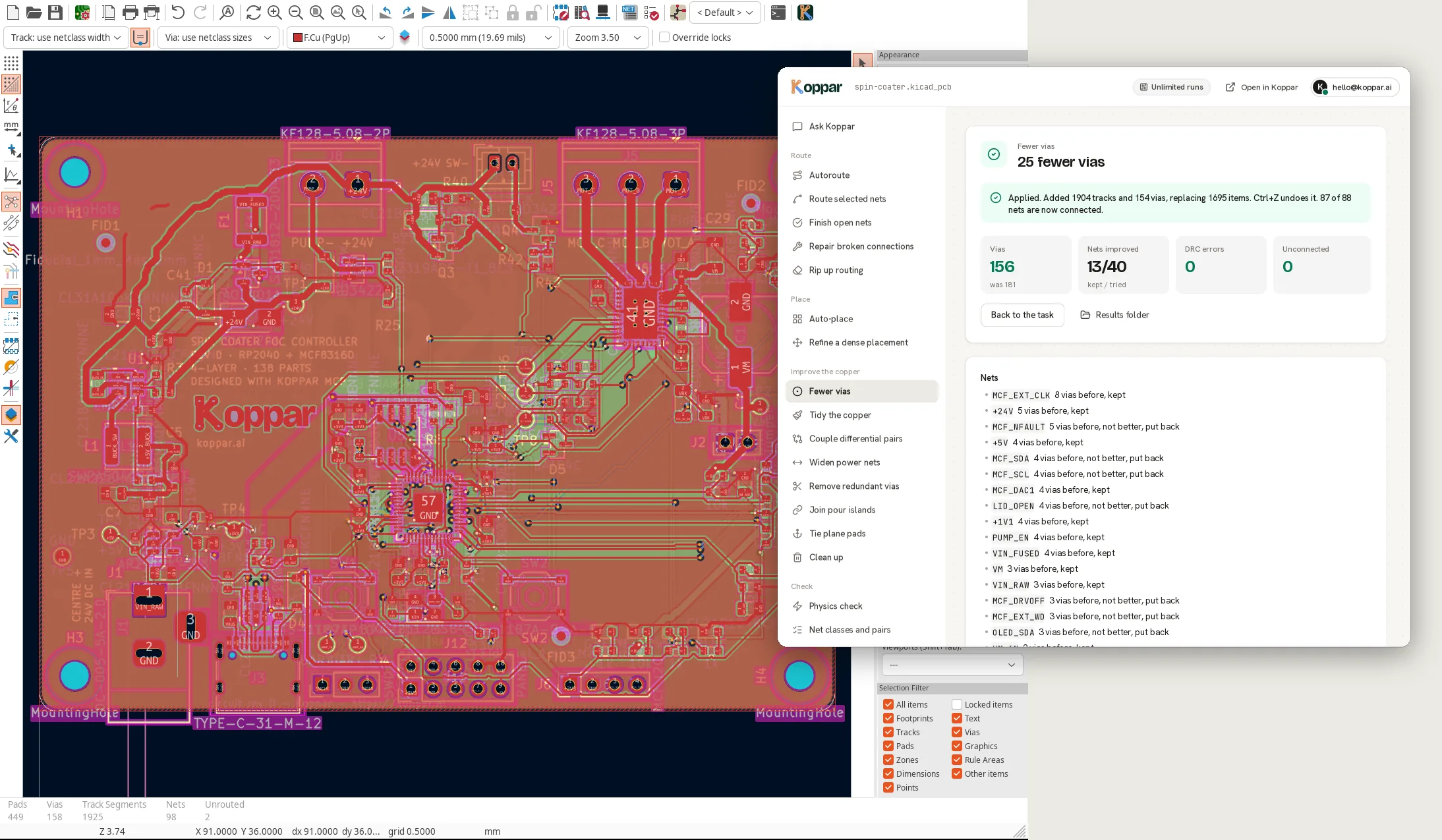
Ask about your board
For accounts with runs left, the window has a conversation with Koppar about the board you have open. Ask why a net will not route, or what to change, and Koppar does the work with the same tools. What it changes waits for your Apply.
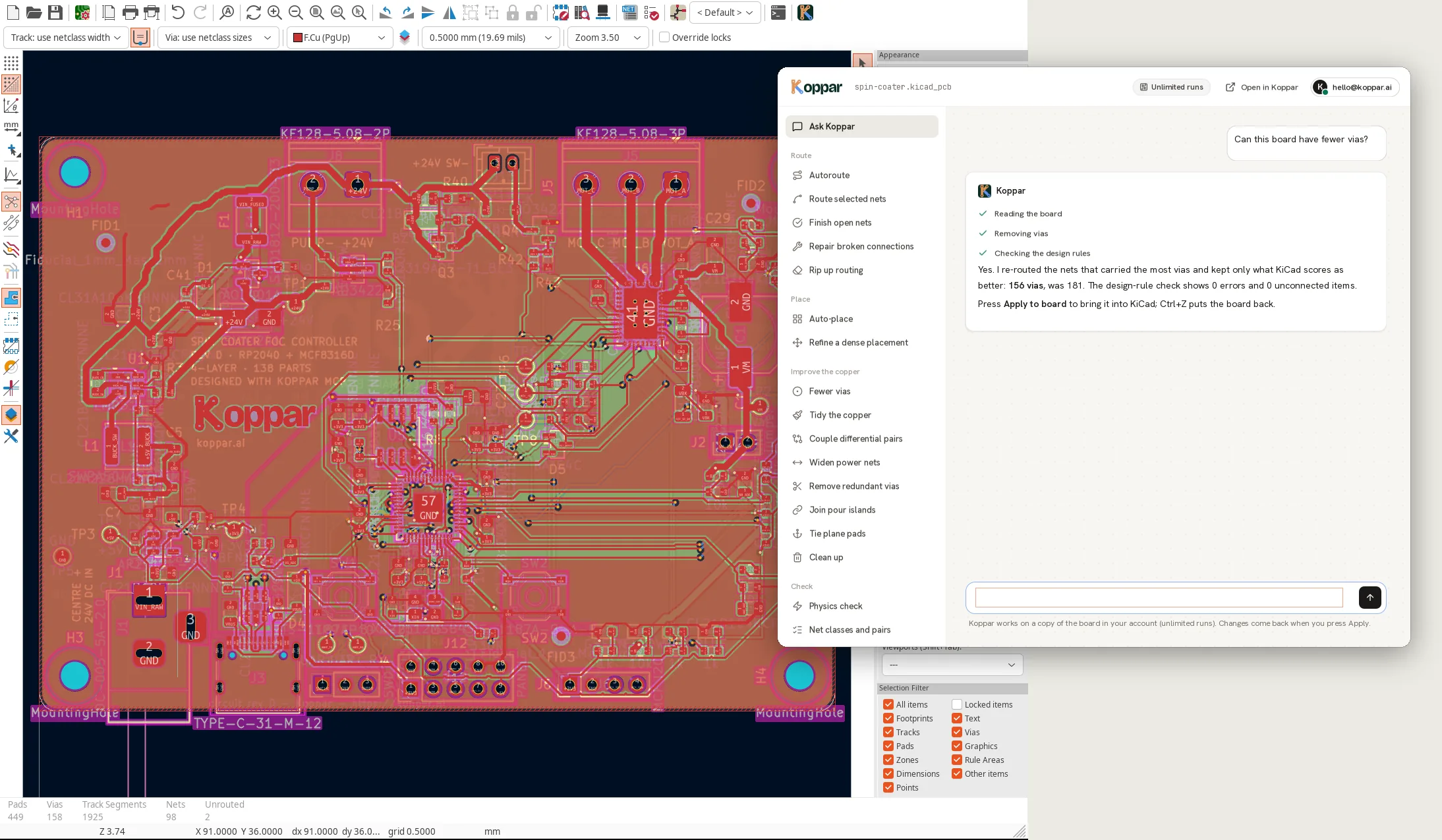
A new board from a description
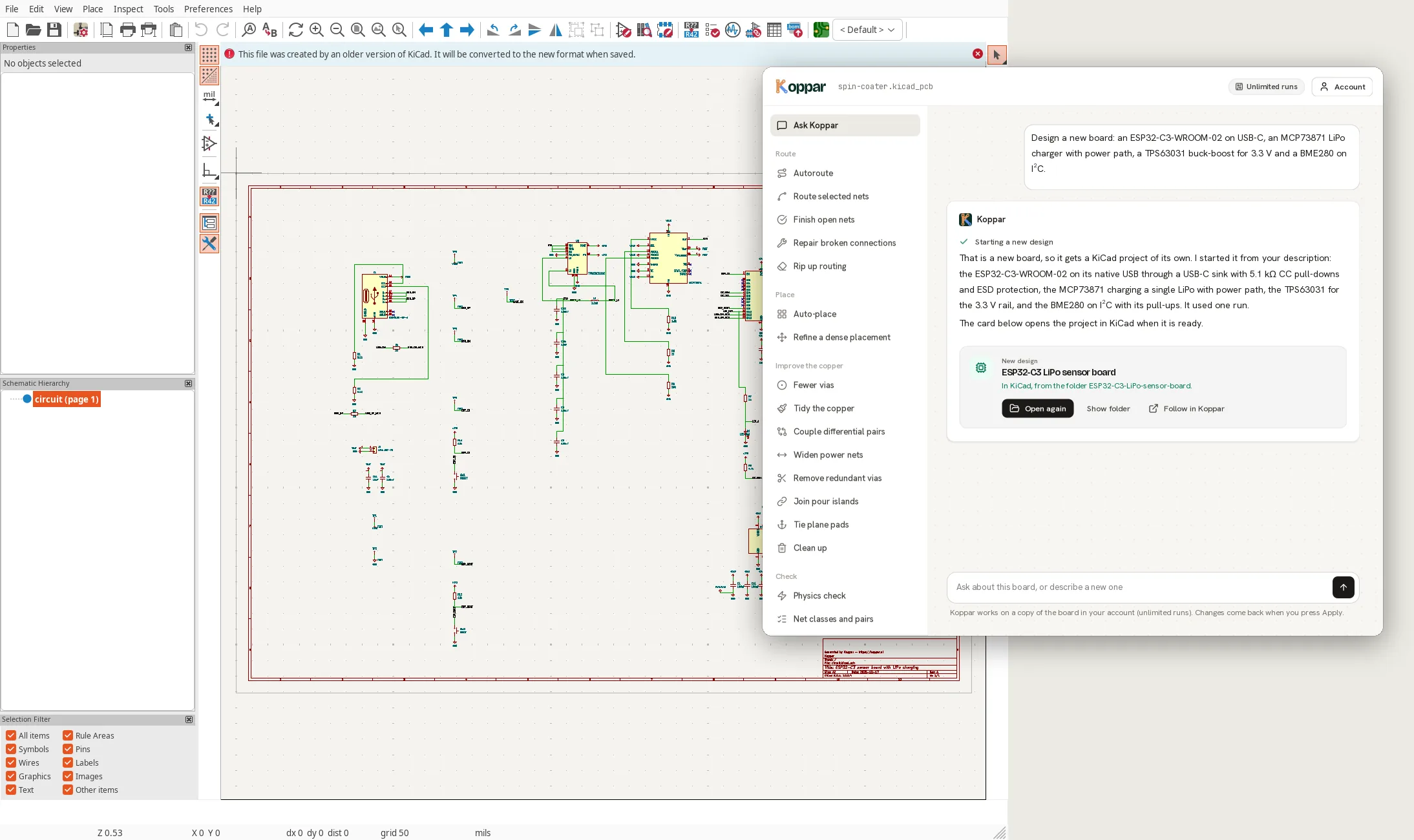
Tell Koppar what the next board must do: the parts you have in mind, its interfaces, its power, its size. Koppar researches the parts, writes and checks the schematic, then places and routes the board, the same pipeline as the Koppar studio. The window follows the run, and Open in KiCad brings the finished project onto your machine and opens it: schematic, board, project rules, the libraries it uses and the BOM. A new design uses one of your runs.
Your KiCad
- KiCad 10
- Every task run in the PCB editor, Apply and Undo included.
- KiCad 9
- Run in the KiCad 9.0 PCB editor: routing, Apply and Undo.
- KiCad 8
- Run in the KiCad 8.0 PCB editor: routing, Apply and Undo.
- KiCad 7
- Routing and placement run on KiCad 7.0 boards, results read back by KiCad 7.
The window follows KiCad’s light or dark theme, in Koppar’s own type and icons.
Questions
Do I need an account?
Not to autoroute a small board: the plugin sends it to Koppar’s public route tool. Larger boards, the other tasks and the assistant use your Koppar account’s API key, which you create in the app’s settings. The plugin also picks up the key of the Koppar CLI if you are logged in there.
What happens to my board in KiCad?
Nothing, until you press Apply. Then the result comes in as one step on KiCad’s undo stack: Ctrl+Z puts the board back exactly as it was. Copper tasks replace the tracks and vias of the nets they worked on; placement tasks move the footprints that are not locked, then the copper.
What is uploaded?
The board as it is in the editor, unsaved edits included, with its .kicad_pro and .kicad_dru, so the router follows your design rules and net classes. An anonymous autoroute job and its files are deleted from the server after 24 hours. Account tasks run on a copy of the board in your account, which you can open in the Koppar app.
Which nets does Autoroute bring back?
The ones you choose: all of them, the ones not connected yet, the ones you selected in the PCB editor, or a list you pick. The copper you already have stays, and the router routes around it.
Does it work in the schematic editor?
KiCad runs plugins like this one only in the PCB editor. A new design comes back as a complete KiCad project, schematic included, and opens in KiCad beside the board you have open.
Does it work on macOS and Windows?
The plugin is plain Python on the wxPython KiCad ships with, and needs nothing else installed. It installs from KiCad’s Plugin and Content Manager on all three systems.